

Follow these steps to use the “SUBMIT BY EMAIL” button on the reporting form for the title agent data call.
- Open the saved form in Adobe. (You should not see a message to “Please wait…”. If you do, then see these steps for saving and opening the form.)
- Enter all of your data into the reporting form as described in the detailed instructions. In case you have questions about a step, check to see if it is covered in the FAQs.
- Scroll to the last page of the form. The bottom of that page should have a “SUBMIT BY EMAIL” button like shown here.
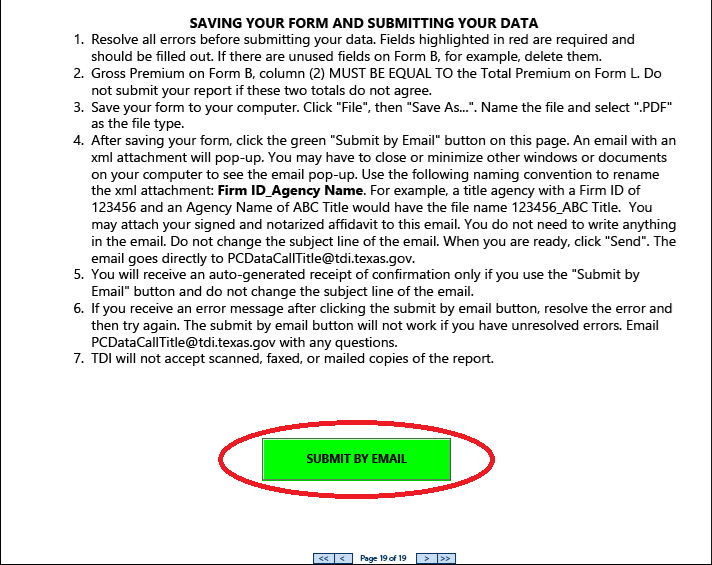
- Click the “SUBMIT BY EMAIL” button.
- If no Send Email dialog like the following pops up, then proceed to the Step 5.
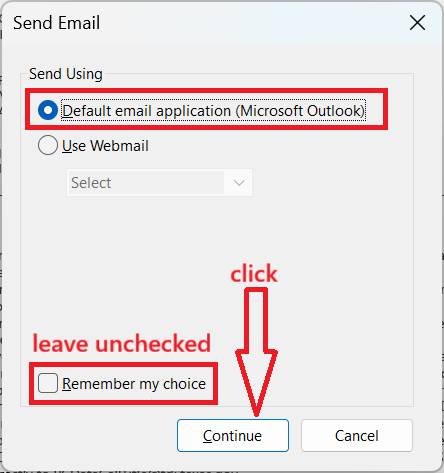
- Otherwise, if a Send Email dialog does pop up, we recommend that you select the “Default email application” radio button and leave “Remember my choice” unchecked. If the only email program you have available is some form of webmail (such as Gmail or Yahoo mail using a web browser), you can try the “Use Webmail” radio button instead, but in our experience, Adobe’s email send functionality no longer works with webmail.
- If no Send Email dialog like the following pops up, then proceed to the Step 5.
- After successfully completing the last step, a draft message should automatically open in your default email software.
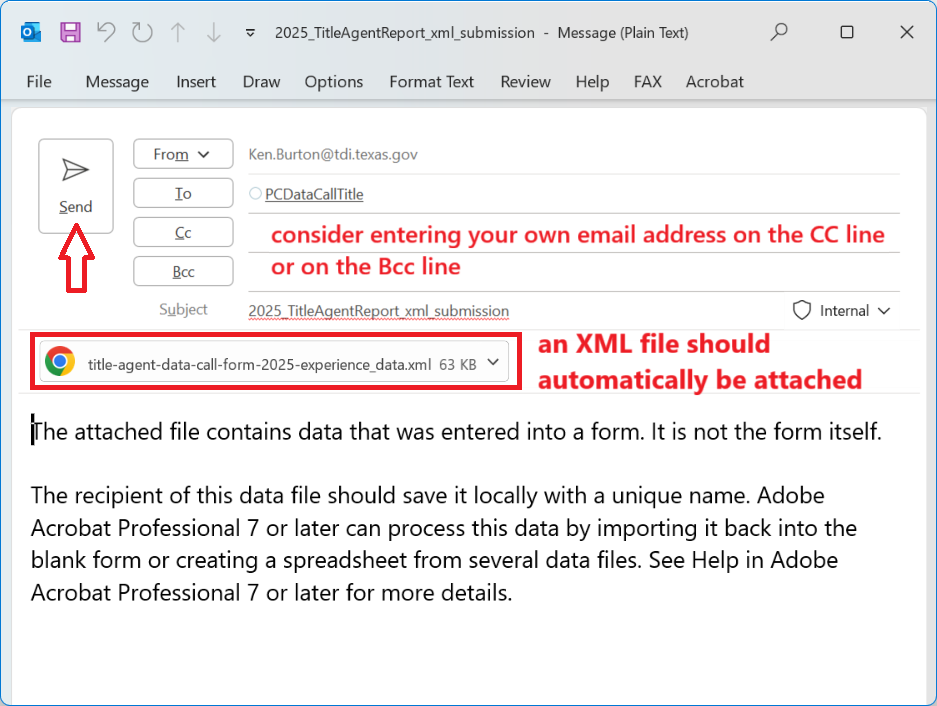 Your email software may look a bit different than what is shown above, but the message should automatically include an attachment. Adding your own email address to the Cc or Bcc line could help with troubleshooting later. However, that is an optional step. Hit “Send” to send the message.
- If you included your own email address before sending and do receive a copy of the message, that is a very good sign that TDI should also have received the message.
- If you included your own email address before sending but you do not receive a copy within a short time, that usually indicates some kind of error in your email system. TDI will generally be unable to help you troubleshoot errors with your email system.
- If you did not include your own email address before sending, then it’s a good idea to look for the outgoing message in your email system’s “Sent Items” folder to confirm that the message really sent. Finding the outgoing message in your “Sent Items” folder is a very good sign that TDI should also have received the message. The exact name and location of the “Sent Items” folder is different for different email systems.
Return to the reporting form instructions.